Once a forwarded certificate has been accepted, an Applicant will be required to use FCS functions to make changes to it before they can use the certificate as their own. These functions include Resale and Reissue. You will use the Resale function when you are sending all or a portion of the product that was included on a certificate that another company registered in FCS forwarded to you.
To resell a certificate, go to Manage Documents > Certificates and select the forwarded certificate you wish to resell (it will be highlighted in grey) and then click ’Resale’.
Once you click Resale, the original certificate will be in Resold status. A new application, with a new document number, will be created that contains all the information from the original certificate.
The only information fields that you are able to edit when using the Resale function on a Standard or Group Based certificate are:
Once the necessary changes have been made, click the ‘Submit Application’ button, located above the tab menu. The application will then go through the validation process and be subject to the catch certificate approval service standards. See Service Standards.
To resell a certificate the Applicant will go to Manage Documents > Certificates and select the certificate (it will be highlighted in grey) then select the ‘Resale’ button.
This will create a new application in interim status with a new document number. The application in interim status will have an application method of Resold, which indicates that the certificate was created by using the Resale function. Resale is used when you are sending all or a portion of the product that was included on a certificate that another Canadian company registered in FCS forwarded to you.
The following section explains how to complete each tab when reselling a certificate.
Detail tab
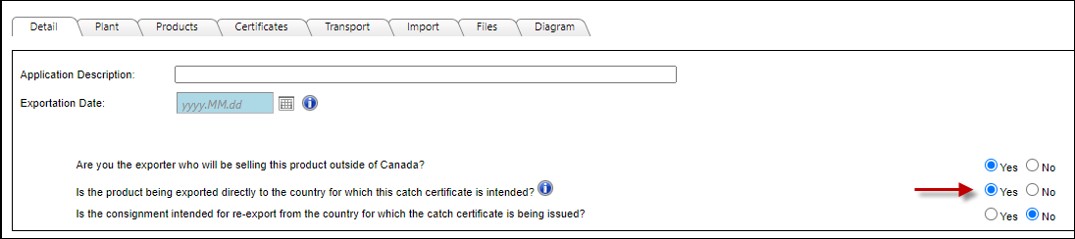
The Applicant needs to enter the Exportation Date. This will be the date the shipment will be exported from Canada or the date the product leaves your facility if being sold within Canada.
The Applicant will then answer the series of questions on the Detail tab that will provide information on whether they are the final exporter of the product and if they are, whether the product is being shipped directly to the country for which the catch certificate is being issued.
Catch tab
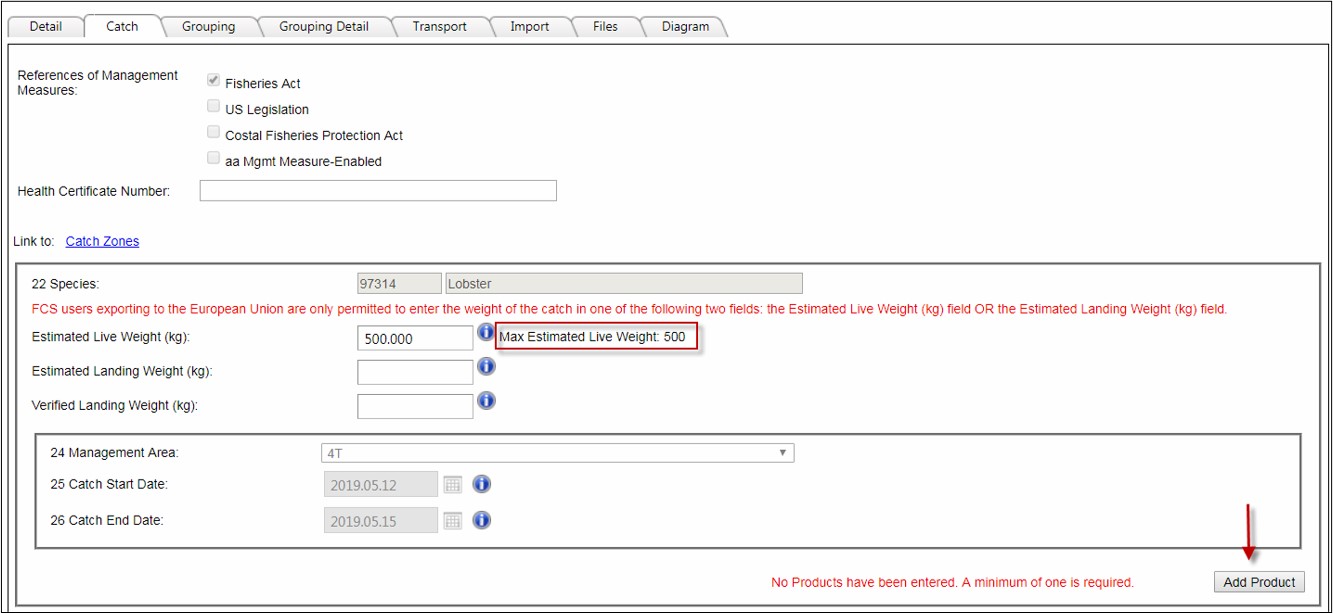
The species is read-only (greyed out) and cannot be changed by the Applicant.
There will be a maximum weight displayed next to the corresponding weight field (shown above in the red box). This is the total weight on the certificate that was forwarded to your company. The maximum weight will also be the default weight displayed in the weight field. You can decrease the amount in this field to match the amount you are shipping or you can leave the default amount as entered if you are sending the whole amount in one shipment. In the example above, the maximum Estimated Live Weight available is 500 kg.
The management area and catch dates are read-only (greyed out) and cannot be changed.
You will need to add the product that you are shipping. Select ‘Add Product’ to enter the HS code and the product weight being shipped. You can add more than one product to the application. See Weight Guidance for information on the product weight.
Grouping tab
Grouping(s) selected by the originating company are read-only and cannot be changed by the Applicant. The group names of the groupings selected have been redacted for privacy reasons.

Grouping Detail tab
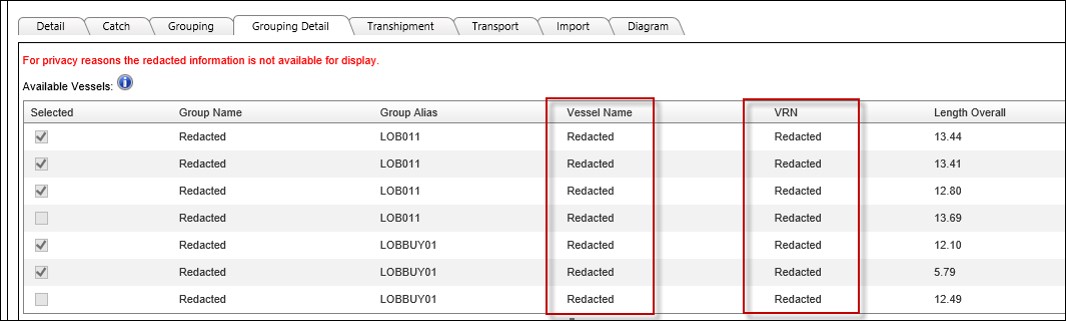
This tab shows all the vessels selected in all groupings used in the application in read-only status. Vessels selected by originating company cannot be changed by the Applicant. All the vessel names and VRNs selected have been redacted for privacy reasons.
Transport tab
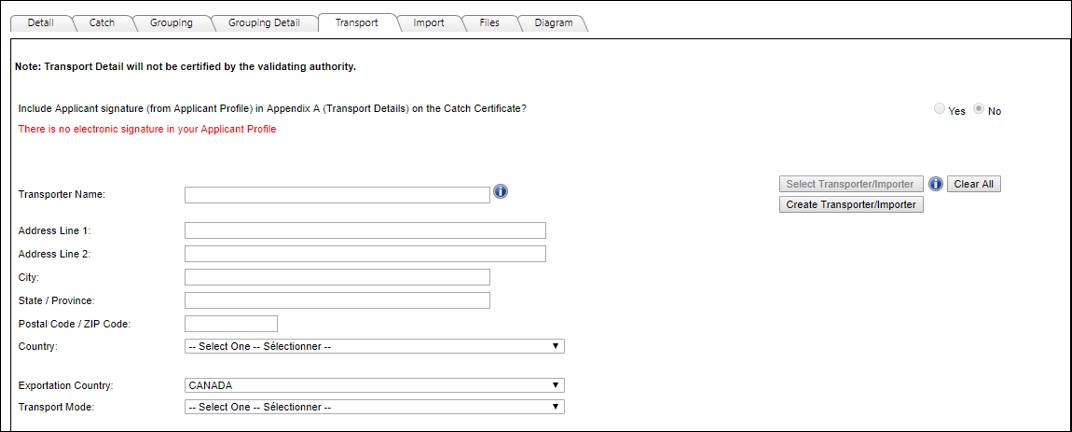
The Transport tab will be blank to allow the Applicant to enter the new transportation information.
Import tab
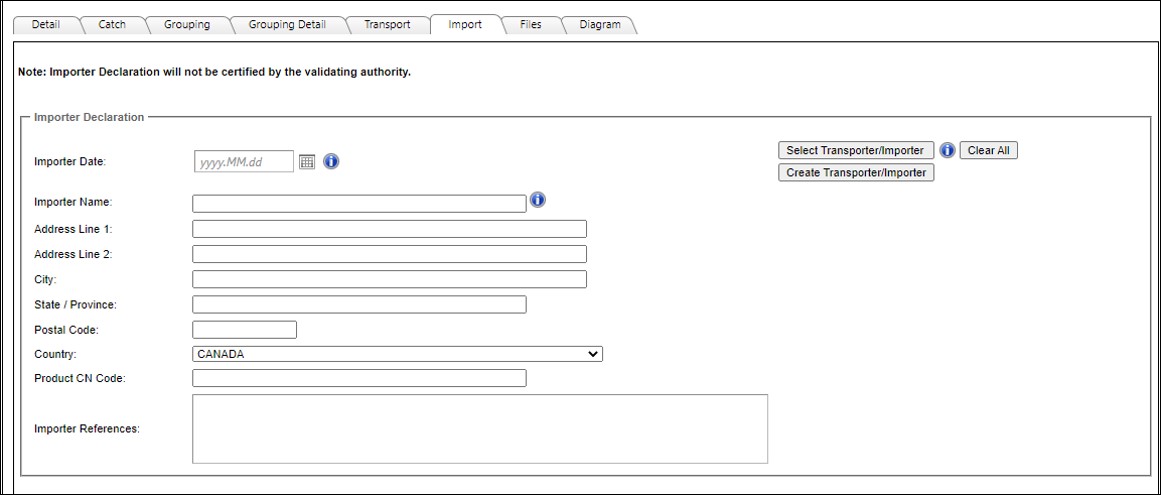
The Import tab will be blank to allow the Applicant to enter the new importer information.
Diagram tab

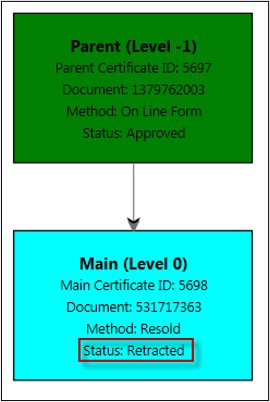
The Diagram tab will show the hierarchy for certificates that are resold.
The screenshot below shows an example of the diagram for a certificate that was resold five times. Note that one of the new certificates created from the Resale, was then also resold two times.
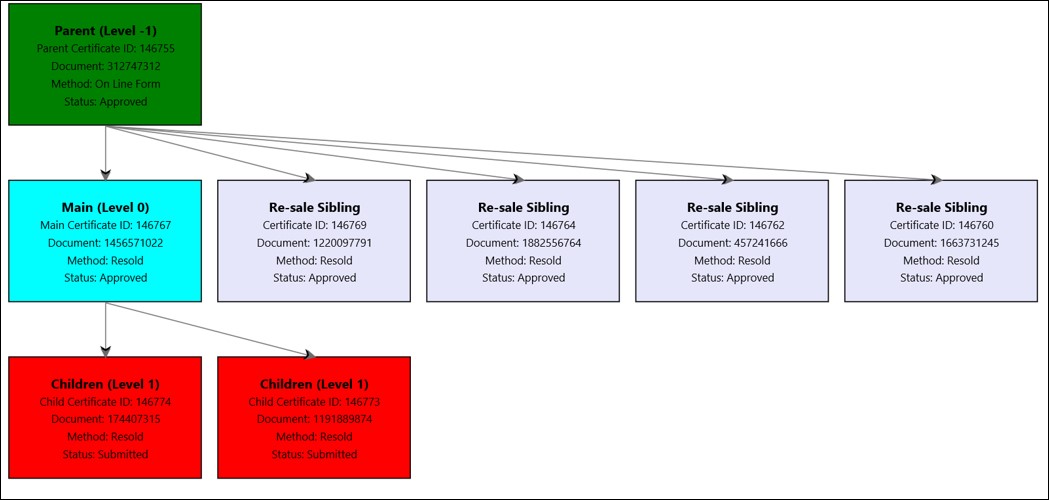
Certificates and applications in all statuses will be displayed on the Diagram tab, including retracted certificates.